
¿Sabías que Microsoft Word tiene herramientas súper organizadas que te...
 Tecnología e Informática115 views·Updated Jun 30, 2026·1 page
Guía Completa para Usar Herramientas de Word
A
Ana Maria Contreras Quintero@naariaontrerasuintero_flqg
1
of 1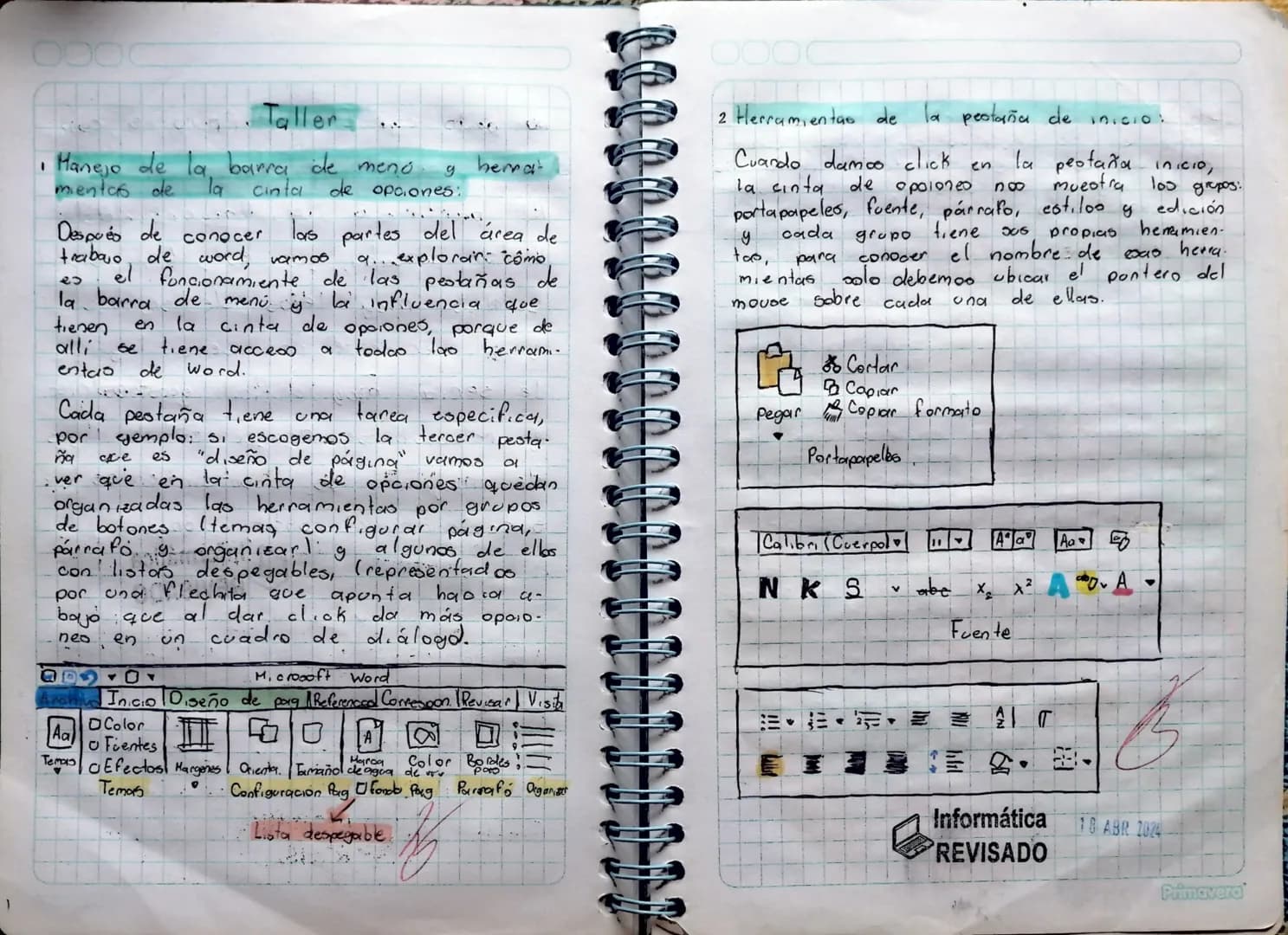
Navegando por las Pestañas y la Cinta de Opciones
¿Te has preguntado por qué Word tiene tantos botones? La verdad es que están súper bien organizados y una vez que entiendas el sistema, te vas a sentir como un experto.
La barra de menú tiene diferentes pestañas y cada una tiene su propia misión. Por ejemplo, cuando haces clic en "Diseño de página", automáticamente aparecen las herramientas que necesitas para cambiar márgenes, orientación y todo lo relacionado con cómo se ve tu página.
Las herramientas están agrupadas en grupos de botones como "Configurar página", "Párrafo" y "Organizar". Fíjate en las flechitas que apuntan hacia abajo - estas son listas desplegables que te dan aún más opciones cuando las presionas.
💡 Tip importante: No trates de memorizar todas las herramientas. Solo explora cada pestaña cuando la necesites y verás que todo tiene sentido.
Herramientas Esenciales de la Pestaña Inicio
La pestaña Inicio es tu mejor amiga - aquí está todo lo que usas día a día. Cuando la seleccionas, verás cinco grupos principales: Portapapeles, Fuente, Párrafo, Estilos y Edición.
En el grupo Portapapeles encuentras las herramientas básicas: Cortar, Copiar, Pegar y Copiar formato. Estas son las que más vas a usar para mover texto y mantener el formato consistente.
Si no sabes para qué sirve alguna herramienta, simplemente pon el cursor encima sin hacer clic. Aparecerá una pequeña descripción que te explica exactamente qué hace - ¡es como tener un tutorial incorporado!
We thought you’d never ask...
Our AI companion is specifically built for the needs of students. Based on the millions of content pieces we have on the platform we can provide truly meaningful and relevant answers to students. But its not only about answers, the companion is even more about guiding students through their daily learning challenges, with personalised study plans, quizzes or content pieces in the chat and 100% personalisation based on the students skills and developments.
You can download the app in the Google Play Store and in the Apple App Store.
That's right! Enjoy free access to study content, connect with fellow students, and get instant help – all at your fingertips.
Similar Content
Most popular content in Tecnología e Informática
9Tecnología e InformáticaProcesos tecnológico y prototipos
Un mapa conceptual de procesos tecnológico, prototipos, tipos, fases, herramientas
89438
Tecnología e InformáticaInteligencia artificial
Que es la inteligencia artificial Tipos de inteligencia artificial Aplicaciones prácticas de la inteligencia artificial
81,29814
Tecnología e InformáticaLa Inteligencia Artificial
Definición y Explicación de la Inteligencia Artificial
91,2467
Tecnología e InformáticaJava
Programacion java, tipos de variables con ejemplos
111473
Tecnología e InformáticaProgramación
Guia de como utilizar app inventor para hacer aplicaciones móviles
4° Sec3330
Tecnología e InformáticaInformática
Informática
7671
Tecnología e InformáticaTipos de materiales
Materiales naturales ,artificiales y sintéticos ,ejemplos y corta explicación
91342
Tecnología e InformáticaSoftware
Habla sobre que es el software su historia sus características ,tipos de software ,sus funciones y tipos y aplicaciones
10663
Tecnología e Informáticaelementos del lenguaje de programación
elementos claves del lenguaje de programación, palabras claves en el lenguaje de programación, tipos de datos, estructura secuencial
11950
Most popular content
9 ICFES: Matemáticas
Simulacro ICFES primera sesión calendario B filtrado 2025
Este simulacro te ayudará a sacar un buen puntaje en las pruebas ICFES este 2025. Vamos por ese 500/500. Y poder ser admitido en la universidad que quieras, estudiar la carrera que quieres y no la que te toque. Vamos con toda para sacar un buen puntaje.
1017,037174
 ICFES: Lectura Crítica
Simulacro icfes
Simulacro
111,95248
 ICFES: Inglés
Cuadernillo Preguntaa Saber 11 Inglés.
Aprovecha los cuadernillos de Inglés para practicar y mejorar tus habilidades en el ítem de Inglés de la Prueba Saber 11. 🫡
Universidad85713
ICFES: MatemáticasMaterial de estudio ICFES
Material de estudio, preguntas icfes de matemáticas resueltas
117,051109
 Química
Trucos para ganar icfes
Lo mejor
111,04312
S
 Otros
Otrossimulacro icfes
Este simulacro evalúa tus conocimientos en las áreas clave del examen ICFES, preparándote para obtener un excelente puntaje.
114580
 ICFES: Sociales y Ciudadanas
SIMULACRO ICFES
Simulacro icfes
111,07315
ICFES: Lectura CríticaICFES segunda sesión calendario B 2025
Segunda sesión simulacro ICFES 2025 calendario B filtrado, aprovecha y se el mejor ICFES de tu colegio y poder ingresar a universidad, y estudiar aquella carrera con la que tanto sueñas.
119,818123
ICFES: Lectura CríticaPrueba icfes 2024
Prueba icfes para practicar todas las asignaturas
118318
Students love us — and so will you.
4.6/5App Store
4.7/5Google Play
The app is very easy to use and well designed. I have found everything I was looking for so far and have been able to learn a lot from the presentations! I will definitely use the app for a class assignment! And of course it also helps a lot as an inspiration.
Stefan SiOS user
This app is really great. There are so many study notes and help [...]. My problem subject is French, for example, and the app has so many options for help. Thanks to this app, I have improved my French. I would recommend it to anyone.
Samantha KlichAndroid user
Wow, I am really amazed. I just tried the app because I've seen it advertised many times and was absolutely stunned. This app is THE HELP you want for school and above all, it offers so many things, such as workouts and fact sheets, which have been VERY helpful to me personally.
AnnaiOS user
Tecnología e Informática115 views·Updated Jun 30, 2026·1 pageGuía Completa para Usar Herramientas de Word
A
Ana Maria Contreras Quintero@naariaontrerasuintero_flqg
¿Sabías que Microsoft Word tiene herramientas súper organizadas que te pueden facilitar la vida? Te voy a mostrar cómo funcionan las pestañas y las herramientas más importantes para que puedas crear documentos increíbles sin complicarte.
1
of 1
Sign up to see the content. It's free!
- Access to all documents
- Improve your grades
- Join milions of students
Navegando por las Pestañas y la Cinta de Opciones
¿Te has preguntado por qué Word tiene tantos botones? La verdad es que están súper bien organizados y una vez que entiendas el sistema, te vas a sentir como un experto.
La barra de menú tiene diferentes pestañas y cada una tiene su propia misión. Por ejemplo, cuando haces clic en "Diseño de página", automáticamente aparecen las herramientas que necesitas para cambiar márgenes, orientación y todo lo relacionado con cómo se ve tu página.
Las herramientas están agrupadas en grupos de botones como "Configurar página", "Párrafo" y "Organizar". Fíjate en las flechitas que apuntan hacia abajo - estas son listas desplegables que te dan aún más opciones cuando las presionas.
💡 Tip importante: No trates de memorizar todas las herramientas. Solo explora cada pestaña cuando la necesites y verás que todo tiene sentido.
Herramientas Esenciales de la Pestaña Inicio
La pestaña Inicio es tu mejor amiga - aquí está todo lo que usas día a día. Cuando la seleccionas, verás cinco grupos principales: Portapapeles, Fuente, Párrafo, Estilos y Edición.
En el grupo Portapapeles encuentras las herramientas básicas: Cortar, Copiar, Pegar y Copiar formato. Estas son las que más vas a usar para mover texto y mantener el formato consistente.
Si no sabes para qué sirve alguna herramienta, simplemente pon el cursor encima sin hacer clic. Aparecerá una pequeña descripción que te explica exactamente qué hace - ¡es como tener un tutorial incorporado!
We thought you’d never ask...
Our AI companion is specifically built for the needs of students. Based on the millions of content pieces we have on the platform we can provide truly meaningful and relevant answers to students. But its not only about answers, the companion is even more about guiding students through their daily learning challenges, with personalised study plans, quizzes or content pieces in the chat and 100% personalisation based on the students skills and developments.
You can download the app in the Google Play Store and in the Apple App Store.
That's right! Enjoy free access to study content, connect with fellow students, and get instant help – all at your fingertips.
Similar Content
Most popular content in Tecnología e Informática
9Tecnología e InformáticaProcesos tecnológico y prototipos
Un mapa conceptual de procesos tecnológico, prototipos, tipos, fases, herramientas
89438
Tecnología e InformáticaInteligencia artificial
Que es la inteligencia artificial Tipos de inteligencia artificial Aplicaciones prácticas de la inteligencia artificial
81,29814
Tecnología e InformáticaLa Inteligencia Artificial
Definición y Explicación de la Inteligencia Artificial
91,2467
Tecnología e InformáticaJava
Programacion java, tipos de variables con ejemplos
111473
Tecnología e InformáticaProgramación
Guia de como utilizar app inventor para hacer aplicaciones móviles
4° Sec3330
Tecnología e InformáticaInformática
Informática
7671
Tecnología e InformáticaTipos de materiales
Materiales naturales ,artificiales y sintéticos ,ejemplos y corta explicación
91342
Tecnología e InformáticaSoftware
Habla sobre que es el software su historia sus características ,tipos de software ,sus funciones y tipos y aplicaciones
10663
Tecnología e Informáticaelementos del lenguaje de programación
elementos claves del lenguaje de programación, palabras claves en el lenguaje de programación, tipos de datos, estructura secuencial
11950
Most popular content
9ICFES: MatemáticasSimulacro ICFES primera sesión calendario B filtrado 2025
Este simulacro te ayudará a sacar un buen puntaje en las pruebas ICFES este 2025. Vamos por ese 500/500. Y poder ser admitido en la universidad que quieras, estudiar la carrera que quieres y no la que te toque. Vamos con toda para sacar un buen puntaje.
1017,037174
ICFES: Lectura CríticaSimulacro icfes
Simulacro
111,95248
ICFES: InglésCuadernillo Preguntaa Saber 11 Inglés.
Aprovecha los cuadernillos de Inglés para practicar y mejorar tus habilidades en el ítem de Inglés de la Prueba Saber 11. 🫡
Universidad85713
ICFES: MatemáticasMaterial de estudio ICFES
Material de estudio, preguntas icfes de matemáticas resueltas
117,051109
QuímicaTrucos para ganar icfes
Lo mejor
111,04312
S
Otrossimulacro icfes
Este simulacro evalúa tus conocimientos en las áreas clave del examen ICFES, preparándote para obtener un excelente puntaje.
114580
ICFES: Sociales y CiudadanasSIMULACRO ICFES
Simulacro icfes
111,07315
ICFES: Lectura CríticaICFES segunda sesión calendario B 2025
Segunda sesión simulacro ICFES 2025 calendario B filtrado, aprovecha y se el mejor ICFES de tu colegio y poder ingresar a universidad, y estudiar aquella carrera con la que tanto sueñas.
119,818123
ICFES: Lectura CríticaPrueba icfes 2024
Prueba icfes para practicar todas las asignaturas
118318
Students love us — and so will you.
4.6/5App Store
4.7/5Google Play
The app is very easy to use and well designed. I have found everything I was looking for so far and have been able to learn a lot from the presentations! I will definitely use the app for a class assignment! And of course it also helps a lot as an inspiration.
Stefan SiOS user
This app is really great. There are so many study notes and help [...]. My problem subject is French, for example, and the app has so many options for help. Thanks to this app, I have improved my French. I would recommend it to anyone.
Samantha KlichAndroid user
Wow, I am really amazed. I just tried the app because I've seen it advertised many times and was absolutely stunned. This app is THE HELP you want for school and above all, it offers so many things, such as workouts and fact sheets, which have been VERY helpful to me personally.
AnnaiOS user